
A blinking power button on a Lenovo laptop does not always mean that the machine is broken. This light behavior indicates a specific electrical state related to power supply, battery, or a poorly managed sleep mode. Before panicking or disassembling anything, there is a methodical sequence of checks that can help isolate the real cause of the problem.
Lenovo power button blinking: what the LED really communicates
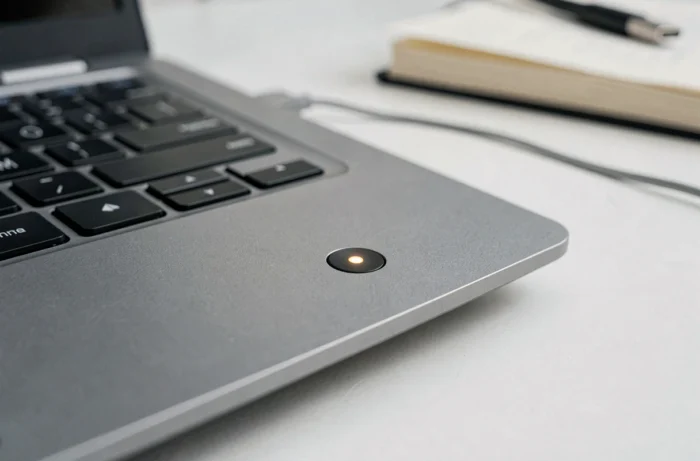
On most Lenovo ranges (IdeaPad, ThinkPad, Legion), the power button includes an LED whose behavior varies according to the system’s state. A slow and steady blink generally indicates that the laptop is in sleep or hybrid sleep mode. This is normal operation, not a distress signal.
On the other hand, a fast or irregular blink, especially combined with a black screen, points to a power supply issue. The blinking is a code, not a diagnosis. It needs to be read in context: is the charger plugged in, is the battery detectable, does the fan spin at startup?
Several discussions on Lenovo forums and repair communities show that users often confuse a prolonged sleep state with a hardware failure. If the laptop responds to a brief press on the button (the screen lights up), it was simply an energy-saving mode. When looking for solutions if the Lenovo power button blinks without the machine reacting at all, the troubleshooting process must follow a specific order.
Electrical reset on Lenovo laptop: the first action to try
The electrical reset (sometimes called “hard reset” or “power drain”) is the action recommended as a priority by Lenovo troubleshooting guides and independent technicians. It drains the capacitors on the motherboard and forces a reset of the power management circuit.
Here is the complete procedure:
- Turn off the laptop and unplug the power charger as well as any connected USB devices.
- If the battery is removable, take it out. If it is integrated, proceed directly to the next step.
- Press and hold the power button for 30 to 60 seconds, with nothing plugged in. This duration allows the internal components to discharge.
- Reconnect the charger first (without the battery if you removed it), then press the power button normally.
This action resolves a significant portion of blinking cases. If the laptop restarts normally, the issue was due to a blocking residual electrical state, common after prolonged sleep or a power cut during charging.
If nothing changes after the reset, the cause lies further upstream in the power chain.
Charger and charging port Lenovo: often overlooked checks
Before considering a motherboard issue, it is essential to methodically eliminate everything between the wall socket and the laptop. A faulty charger or a damaged cable causes exactly the same symptoms as an internal failure.
First, test another wall socket. This may seem trivial, but field reports show that users spend hours looking for a hardware fault when the socket was simply defective or a power strip had silently tripped.
Next, inspect the cable and the power adapter. A LED on the charger block that does not light up confirms a problem on the external power side. A charger without an active light indicator is likely not delivering power anymore.
Specific case of Lenovo with USB-C charging
Recent models (ThinkPad, Yoga, some IdeaPad) use USB-C for charging. This standard adds a layer of complexity: the cable, port, and adapter must all support the Power Delivery protocol with the appropriate power level.
Several recent reports mention issues related to an uncertified USB-C cable, a dirty port, or unstable power negotiation between the charger and the laptop. Changing the cable or USB-C port can sometimes restore charging. If your Lenovo has two USB-C ports, test the second one.

Faulty battery or motherboard: how to distinguish between the two failures
If the electrical reset did not help and the charger works correctly (verified on another device or with another compatible charger on the same laptop), two hypotheses remain in play.
The first: the battery no longer holds a charge or is not detected by the controller. To test this hypothesis, remove the battery (if removable) and attempt to start only on AC power. If the laptop turns on normally without the battery, the battery is the issue.
The second hypothesis concerns the motherboard itself, more specifically the power management circuit. Field reports vary on this point: some technicians report faulty SMD components (capacitors, voltage regulators) that cause blinking without startup, while others report cases resolved by a simple BIOS update.
Lenovo diagnostic tools can help clarify in some cases. The official procedure recommends three steps:
- Launch an automatic update of drivers and BIOS via Lenovo Vantage (if the laptop starts in degraded mode or on AC power only).
- Run the built-in hardware diagnostic, accessible at startup via the dedicated key (often the Novo button on IdeaPads, or F12/Enter on ThinkPads).
- Contact Lenovo support with the possible error code if the diagnostic does not resolve anything.
Lenovo power button blinking: when professional repair becomes necessary
A persistent blink after all these checks points to a hardware problem that exceeds user troubleshooting. Replacing a component on the motherboard (voltage regulator, soldered charging connector) requires microsoldering equipment and specific expertise.
For models still under warranty, Lenovo support covers diagnosis and repair. Out of warranty, independent repairers specializing in microsoldering offer this type of service, but the cost must be weighed against the residual value of the laptop.
A precise diagnosis before any intervention avoids unnecessarily replacing parts. Changing a battery when the charging circuit is faulty will not solve anything, and vice versa. The sequence of checks described above allows arriving at a repair shop with a reliable pre-diagnosis, which speeds up the process and reduces the risk of blind replacement.