The wifi password for your Freebox is an alphanumeric string generated by Free when your box is activated. This wifi security key protects access to your home network and prevents unauthorized devices from connecting. Losing this information or being unable to find it when connecting a new device is a common issue, but there are several methods to recover it without resetting anything.
Find the wifi password directly on the Freebox case
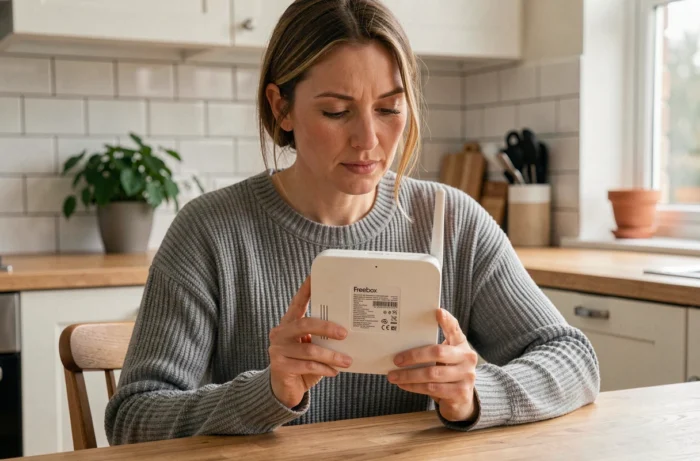
Before any software manipulation, the first option remains physical. On most Freebox models (Pop, Revolution, Mini 4K), a label stuck on the back or underneath the server case displays the network name (SSID) and the default wifi key.
This method only works if the password has never been changed since the initial installation. If you or a technician have customized the key via the administration interface, the label no longer reflects reality. In this case, the software methods described below take over.
One point to check: on some recent models, the label mentions two distinct networks (one for the 2.4 GHz band, another for the 5 GHz band). Each band can have a different password if the configuration has been separated manually. By default, Free generally uses the same key for both bands.
To find the ultra Freebox wifi password on Mix Design and Tech, the procedure differs slightly depending on the model, but the principle remains the same across the range.

Display the wifi key from the Freebox Connect app
The Freebox Connect app (available on iOS and Android) is the most direct method to view your current wifi password, including if it has been changed.
Access the password in Freebox Connect
Open the app, then go to the “Wi-Fi Network” section. The active password appears in plain text, with the option to copy or share it.
A lesser-known advantage: Freebox Connect works even on 4G, without being connected to the box’s wifi network. You just need to authenticate with the subscriber’s Free credentials. This feature is useful if no device is connected to the wifi and the key is physically untraceable.
Free subscriber area as an alternative
The subscriber area accessible from free.fr offers a similar feature. After logging in with your credentials, the section dedicated to managing the Freebox allows you to display and modify the wifi key. This web interface is particularly useful if the mobile app is not installed or if the operation is being performed from a computer.
Retrieve the wifi code from a device already connected
When at least one computer or smartphone is still connected to the Freebox network, the password is already stored in the operating system of that device. No need to touch the box or open the subscriber area.
On Windows
Access the network settings, then the properties of your active wifi connection. In the “Security” tab, check “Show characters” to reveal the key in plain text. On Windows 11, the path goes through Settings, Network & Internet, Wi-Fi, then the properties of the saved network.
On macOS
The “Keychain Access” app (or “Passwords” on recent versions of macOS) keeps all saved wifi keys. Search for your Freebox network name, then display the password after authenticating with your administrator session.
On Android or iOS smartphone
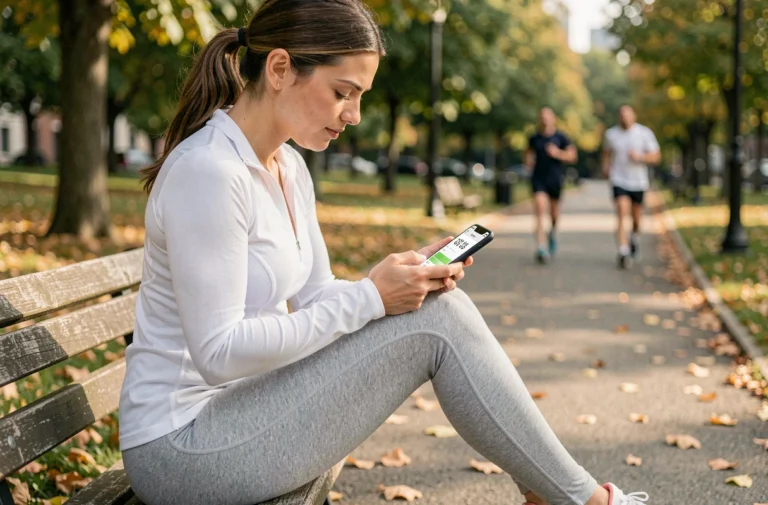
Recent versions of Android and iOS allow sharing or displaying saved wifi passwords. On Android, the function is found in the wifi settings of the connected network, in the form of a QR code or text. On iOS, sharing occurs via proximity to another Apple device, or through the wifi settings since iOS 16.
- Windows: Network settings, connection properties, Security tab, “Show characters”
- macOS: Keychain Access or Passwords app, search by network name
- Android: Wifi settings, connected network, “Share” option or QR code
- iOS: Wifi settings, tap the connected network, password displayed or shareable

WPA3 encryption on Freebox and consequences for reconnection
Free now offers the activation of WPA3 encryption on certain recent Freebox models. This protocol enhances network security by making dictionary attacks significantly more difficult. Activating WPA3 does not change the password itself, but modifies how devices negotiate the connection.
The concrete trap: after activating WPA3, some older devices (wifi printers, connected objects, old laptops) may no longer be able to connect. Their network card simply does not support this protocol. The result resembles an incorrect password, even though the key has not changed.
If you encounter this issue after changing the encryption type, two solutions exist:
- Temporarily revert to WPA2 from Freebox Connect or the subscriber area to reconnect incompatible devices
- Activate the mixed WPA2/WPA3 mode, which allows old and new devices to coexist on the same network
- Check in the wifi settings of the stubborn device if a network driver update resolves compatibility
Switching to WPA3 is still recommended for network security, but check the compatibility of all your devices before switching permanently.
Whatever method you use to find your Freebox wifi key, consider noting it in a password manager rather than on a sticky note attached to the box. If you decide to customize this key, favor a combination of at least twelve characters mixing letters, numbers, and symbols, without links to easily guessable personal information.